Downloads
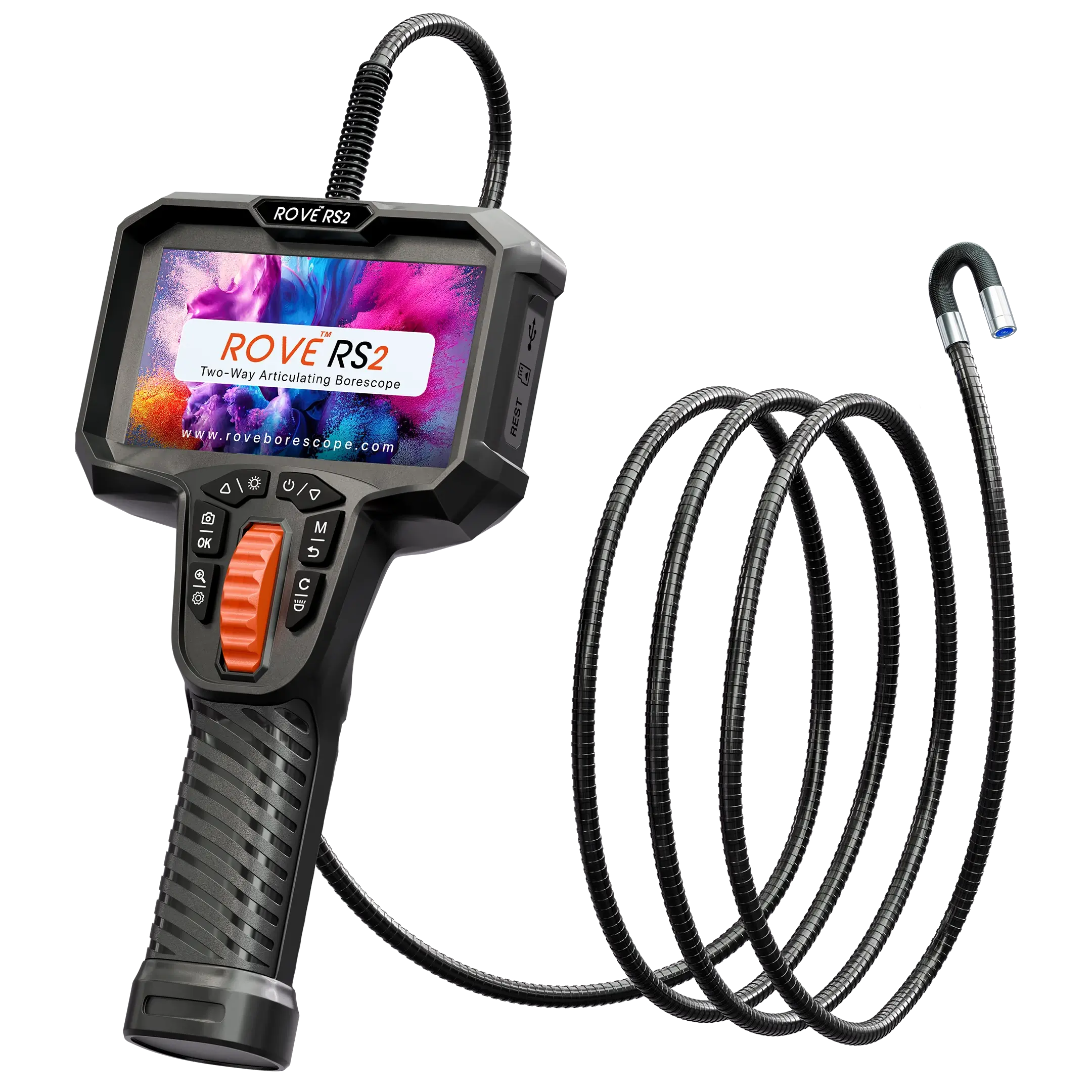
ROVE RS2
- Download ZIP - ROVE RS2 Firmware
ROVE RS2 Firmware
V42026-04-30
SD-card update. Follow the firmware update guide for the install steps.
Follow the steps below carefully to update the firmware on your ROVE Borescope. First download the correct firmware file for your model (RS2 or RS4), then follow the same update procedure.
Before you start
Check that:
- The device is fully charged before starting the firmware update.
- You have a working SD card.
- You have downloaded the latest firmware ZIP file for YOUR model (RS2 or RS4) from the link above.
- The SD card is formatted before copying the firmware files.
How to update the firmware
- 1
Download the firmware file
Download the latest firmware ZIP file for your model (RS2 or RS4) from the link on this page.
Installing firmware meant for a different model can cause the update to fail, so double-check you have the correct file.
- 2
Format the SD card
Before copying the firmware files, format the SD card properly.
This helps avoid update errors caused by old files or corrupted data already present on the card.
- 3
Extract the ZIP file
Unzip or extract the downloaded firmware ZIP file on your computer.
After extraction, you will see the firmware update files inside the extracted folder.
- 4
Copy firmware files to the SD card
Copy the contents of the extracted folder directly onto the SD card. Do not copy the ZIP file itself.
Make sure the firmware files are placed directly on the SD card, not inside an extra folder.
- 5
Insert the SD card into the device
Safely remove the SD card from your computer and insert it back into the borescope device.
- 6
Power on the device
Press the power switch to turn the device ON.
The device will automatically detect the firmware update files on the SD card.
- 7
Wait for the firmware upgrade to complete
Once the device powers ON, you will see the firmware upgrade screen on the display.
Wait until the upgrade process is complete. Do not remove the SD card or power off the device during the update.
- 8
The device powers off automatically
After the firmware upgrade is complete, the device powers OFF automatically.
Once this happens, the firmware update is finished and your device has the updated firmware installed.
Important notes & troubleshooting
- The firmware update files copied to the SD card stay on the card after the upgrade. They are not deleted automatically.
- If the firmware upgrade is disturbed or interrupted, there is no need to worry. Format the SD card again, copy the firmware files once more, insert the card into the device, and power it ON again.
- Always make sure the device is fully charged before starting the firmware update.
- Do not turn off the device manually during the firmware upgrade.
- Do not remove the SD card while the firmware upgrade is in progress.
- Always use the firmware file that matches your model - RS2 firmware for RS2, RS4 firmware for RS4.